Custom fields for courses
CoursesUpdated September 21, 2026
Just like user profiles, courses can carry extra fields beyond the built-in title, description, and category — useful for things like an accreditation number, an internal course code, or a compliance category your reports need to filter on.
Before you start
You need the Admin role.
Add a custom field
- Go to your course management settings and find Custom fields.
- Click New field and choose a field type — text, number, date, or a dropdown.
- Name the field (for example, Accreditation number or Internal course code) and decide whether it's required.
- Save. The field now appears in the course editor's details section for every course.
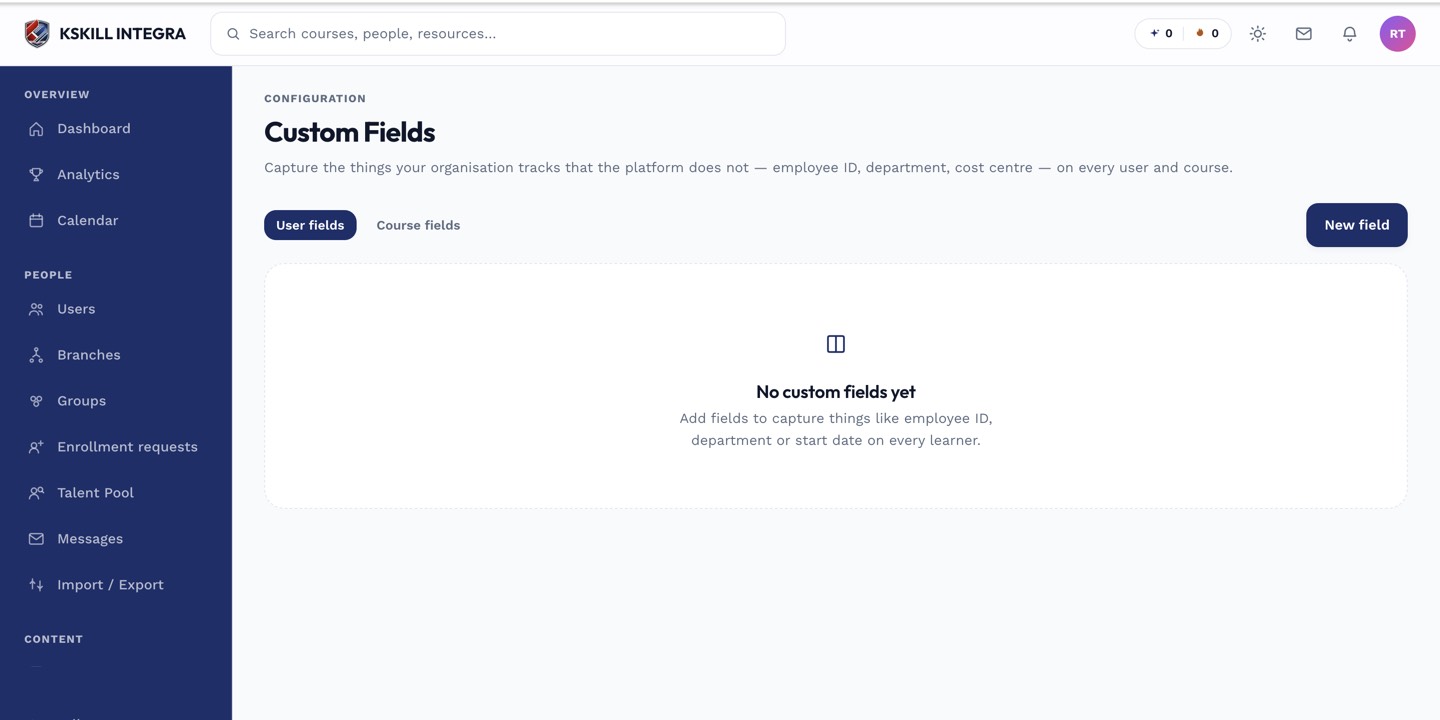 Course custom fields are configured the same way as user profile fields, in a separate section.
Filling them in
Set custom field values from the course editor when creating or editing a course — they sit alongside the standard course details.
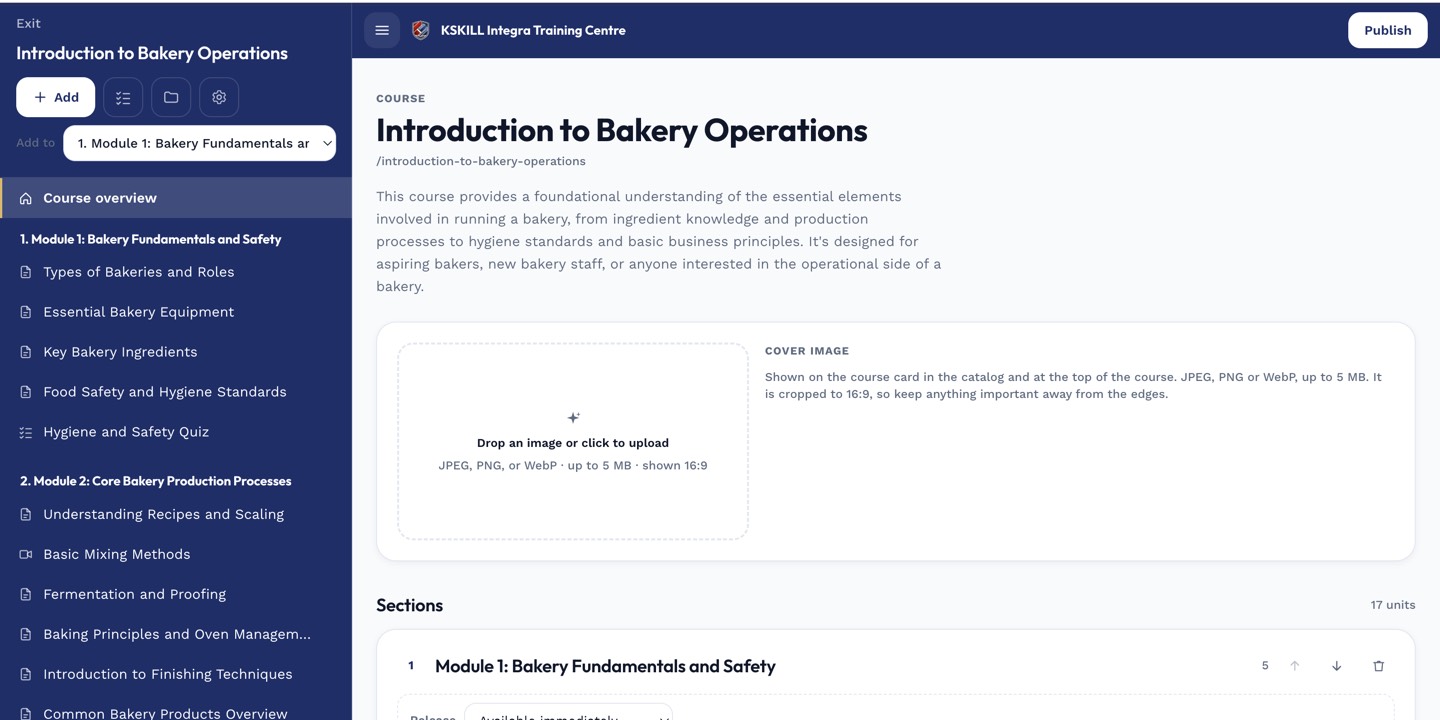 Required custom fields must be filled in before the course can be published, if your admin has marked them required.
Notes
Custom course fields are useful for reporting — filtering the course catalog or an analytics report by a cost centre or accreditation category that isn't a built-in field.
What next?
#custom-fields#courses#reporting#authoring