Duplicate a course
Duplicating a course clones the whole thing — outline, units, tests, certificate. Use it to spin up a variant without rebuilding from scratch.
Before you start
You need the Admin role. The source course can be in any state.
Step 1 — Open Manage Courses
Open Content → Courses. Hover the source course row and click the overflow menu. Pick Duplicate. The platform starts cloning in the background.
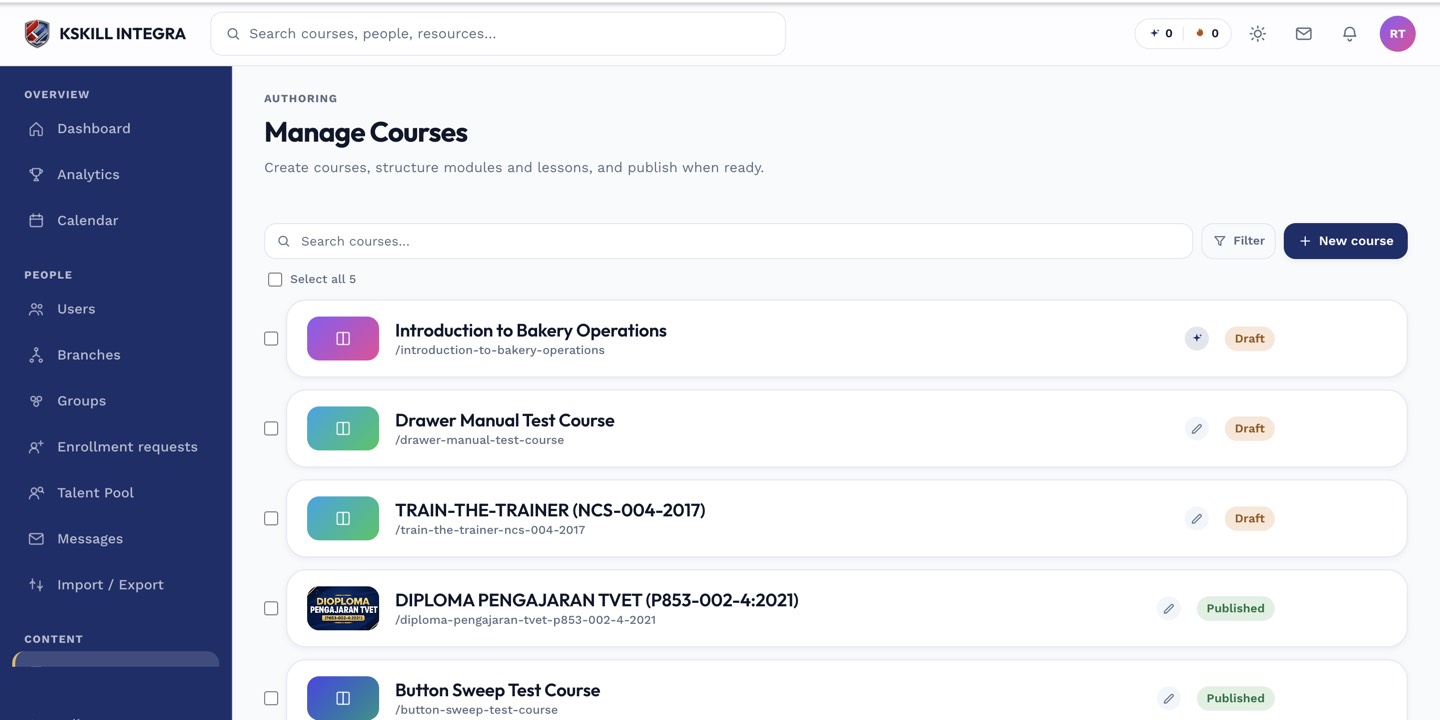
The Manage Courses screen is the launch pad for anything course-related.
Step 2 — Wait for the clone to land
Duplication runs asynchronously — big courses with SCORM packages can take a minute. When it is done, the copy appears in the list with (copy) appended to the title. It is a full, independent course — edits to it never affect the original.
The Manage Courses screen is the launch pad for anything course-related.
Step 3 — Rename and republish
Open the copy and change the title (drop the (copy) suffix). Flip visibility back to Draft if the source was published — you probably do not want two identical published courses side by side. Attach a new certificate if needed and publish when ready.
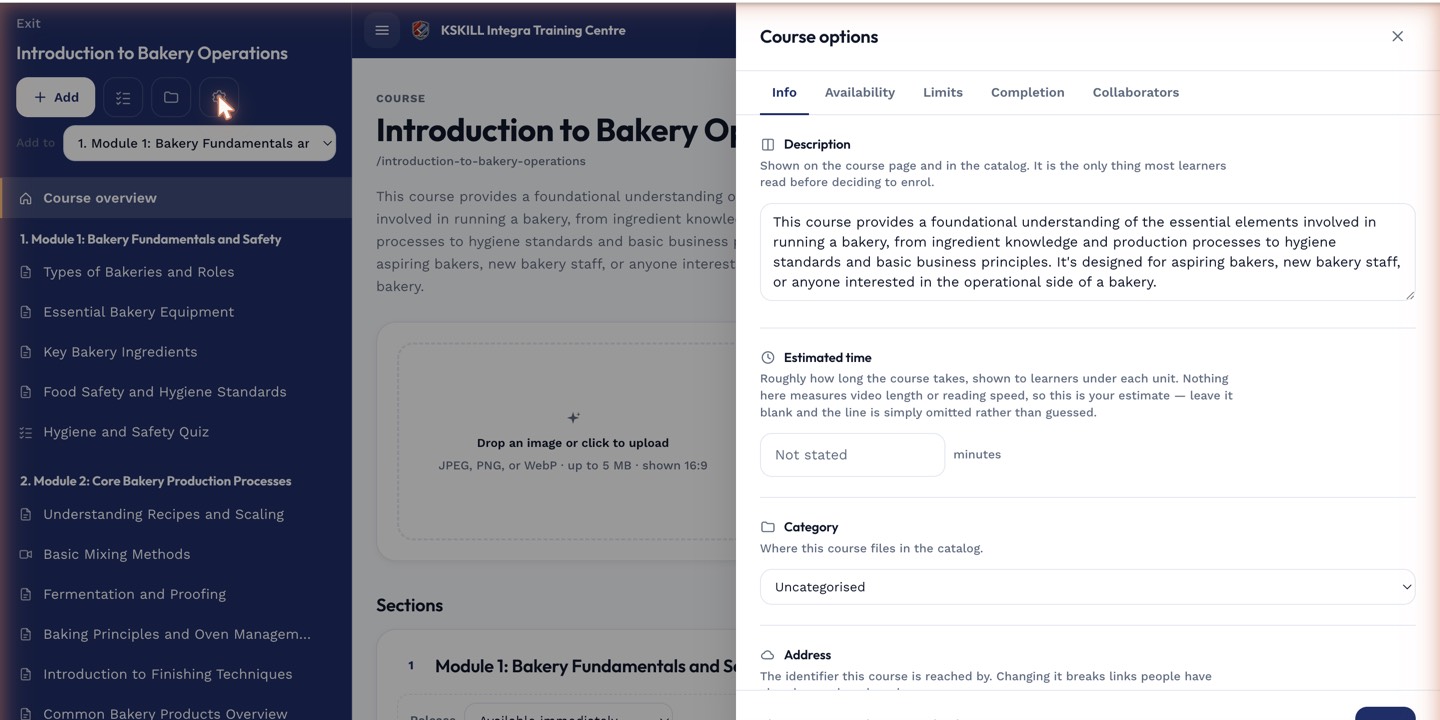
The options drawer is where every per-course rule lives — visibility, price, completion criteria, expiration.
Notes
- Duplicated courses lose enrolments and learner progress — that is intentional; they are fresh copies.
- SCORM packages are copied by reference, not by re-upload, so storage stays cheap.