Grading an individual assignment submission
CoursesUpdated September 21, 2026
Assignment units let learners upload a file or write a text response, and someone has to read it and put a number on it. Here's the flow, one submission at a time.
Before you start
You need the Instructor or Admin role, and you must teach (or be granted access to) the course the assignment belongs to. Learners cannot see a grade until you save it.
Open and grade a submission
- Go to Manage → Grading and stay on the Assignments tab.
- Find the row for the learner and assignment you want to grade — the status chip reads Pending for anything untouched.
- Click the row to open the grade drawer. It shows the learner's uploaded file or text response, the assignment's instructions, and a scoring panel.
- Enter a score (or pass/fail, depending on how the assignment is configured) and write feedback in the comment box.
- Click Save grade. The row's status flips to Graded and the learner is notified.
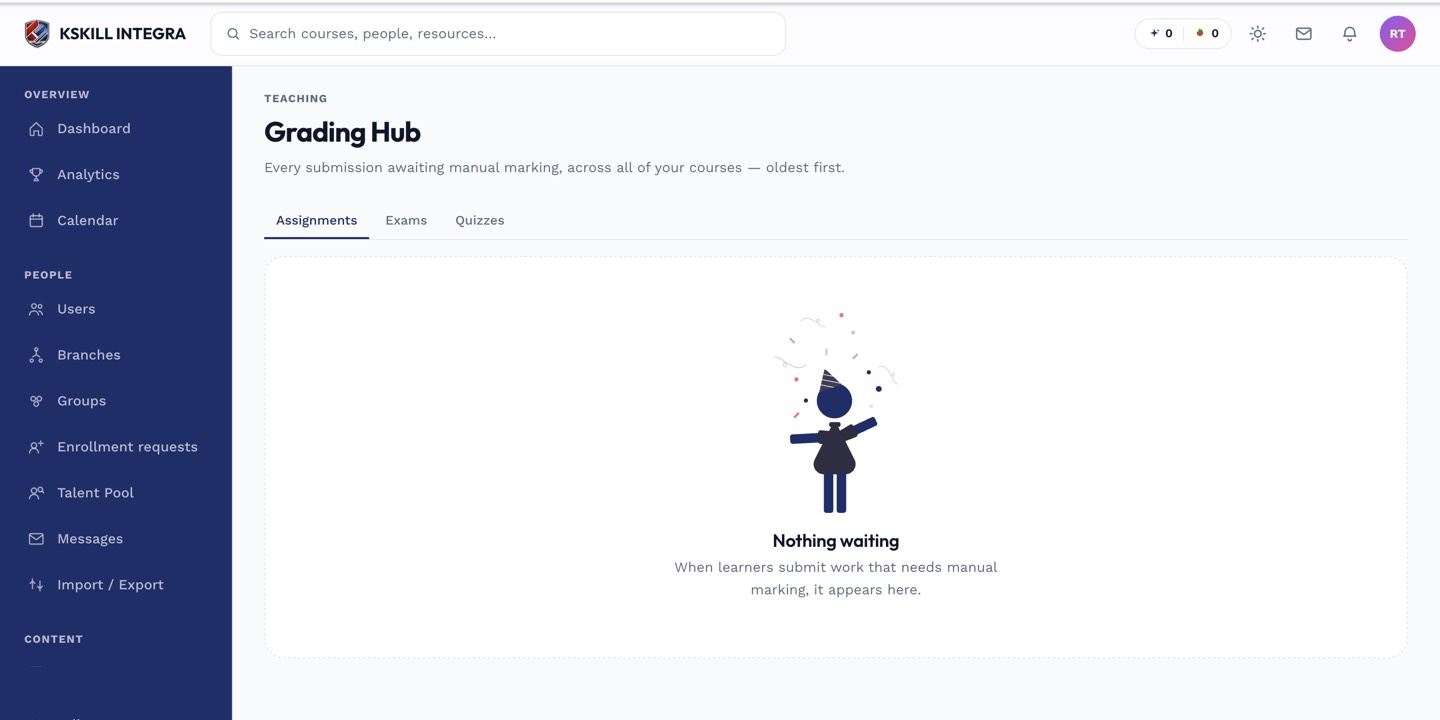 The drawer keeps the submission and the scoring form side by side so you don't lose your place.
Downloading the file
For file-upload assignments, click the attachment inside the drawer to download it before scoring — large files (video, design mockups) may be easier to review outside the browser.
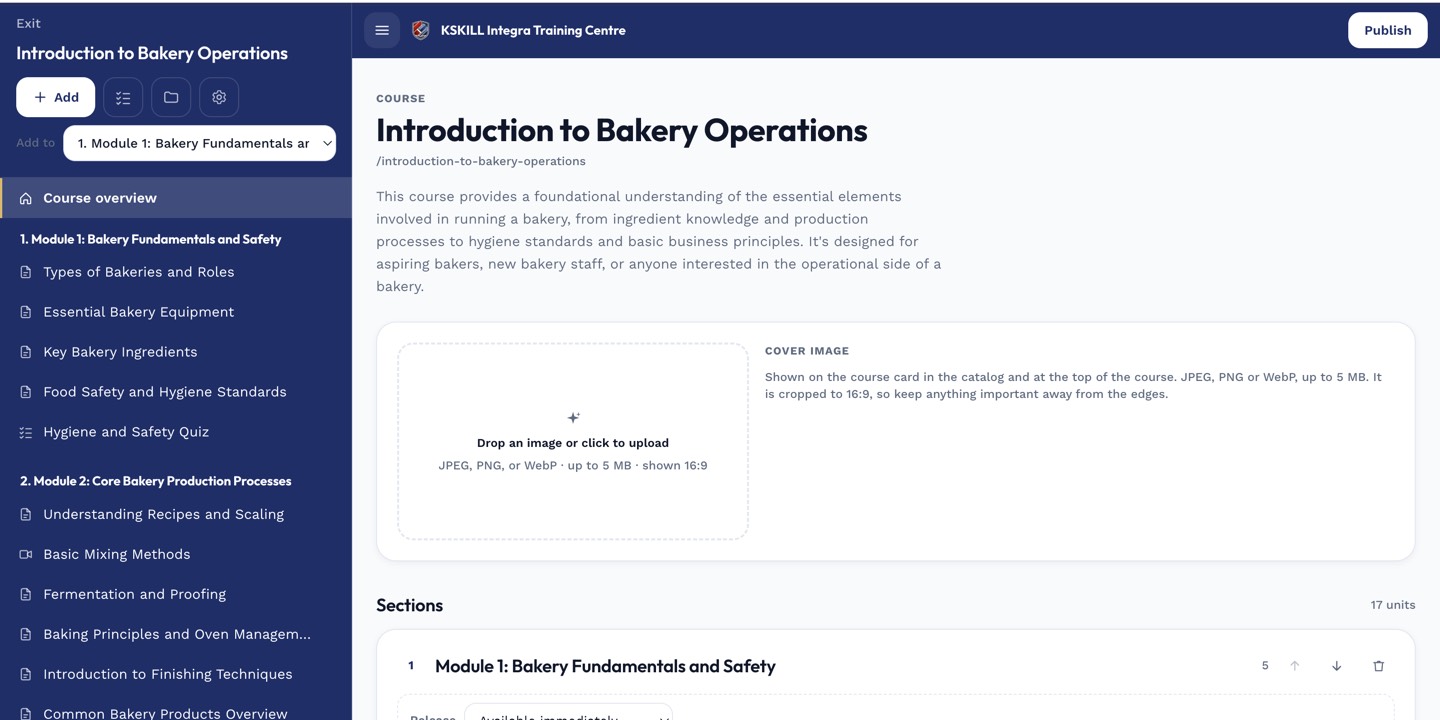 The assignment's instructions, visible in the course editor, also show inside the grade drawer for reference.
Notes
Changing a grade after it's saved re-notifies the learner. If an assignment feeds into a course's completion requirement, saving a passing grade can immediately unlock the next unit for that learner.
What next?
#grading#assignments#feedback#submissions