Grading multiple submissions at once with mass actions
CoursesUpdated September 20, 2026
When a cohort submits the same assignment on the same deadline, opening each one individually is slow. Mass actions in the Grading Hub let you act on several rows at once.
Before you start
Mass actions are available on the Assignments and ILT sessions tabs. You need the same role and course access you'd need to grade a single submission.
Select and act
- Open Manage → Grading and go to the tab you want.
- Use the checkboxes on the left of each row to select multiple submissions — or the header checkbox to select every row currently shown.
- A mass-action bar appears above the table. Depending on the tab, this offers actions like Mark attendance, Apply grade to selected, or Send reminder.
- Confirm the action. It applies to every selected row and each affected learner is notified individually.
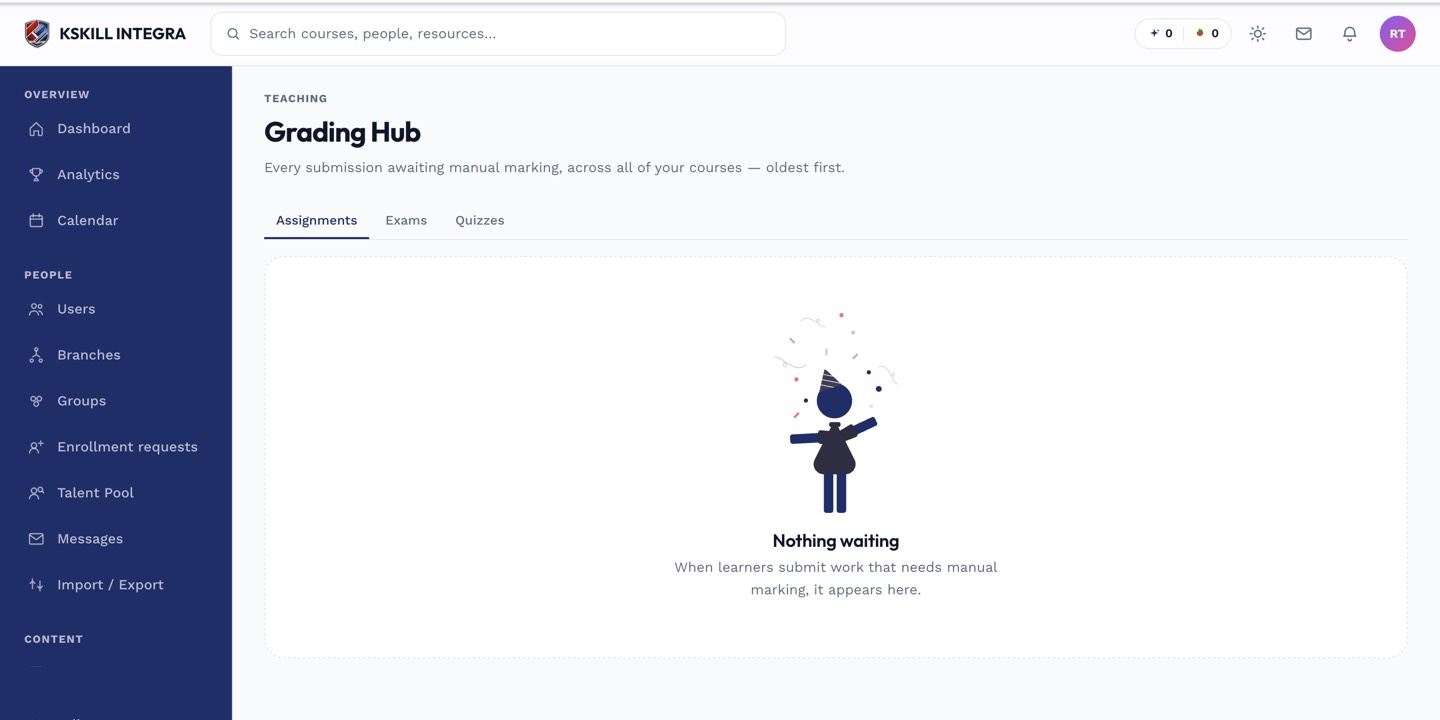 Selected rows show a count in the mass-action bar before you confirm anything.
When to use it, and when not to
Mass actions are best for uniform work — marking a whole session's attendance, or applying the same pass grade to a batch of identical short submissions. If feedback needs to differ learner to learner, grade those individually instead; a mass grade applies the same score and comment to everyone selected.
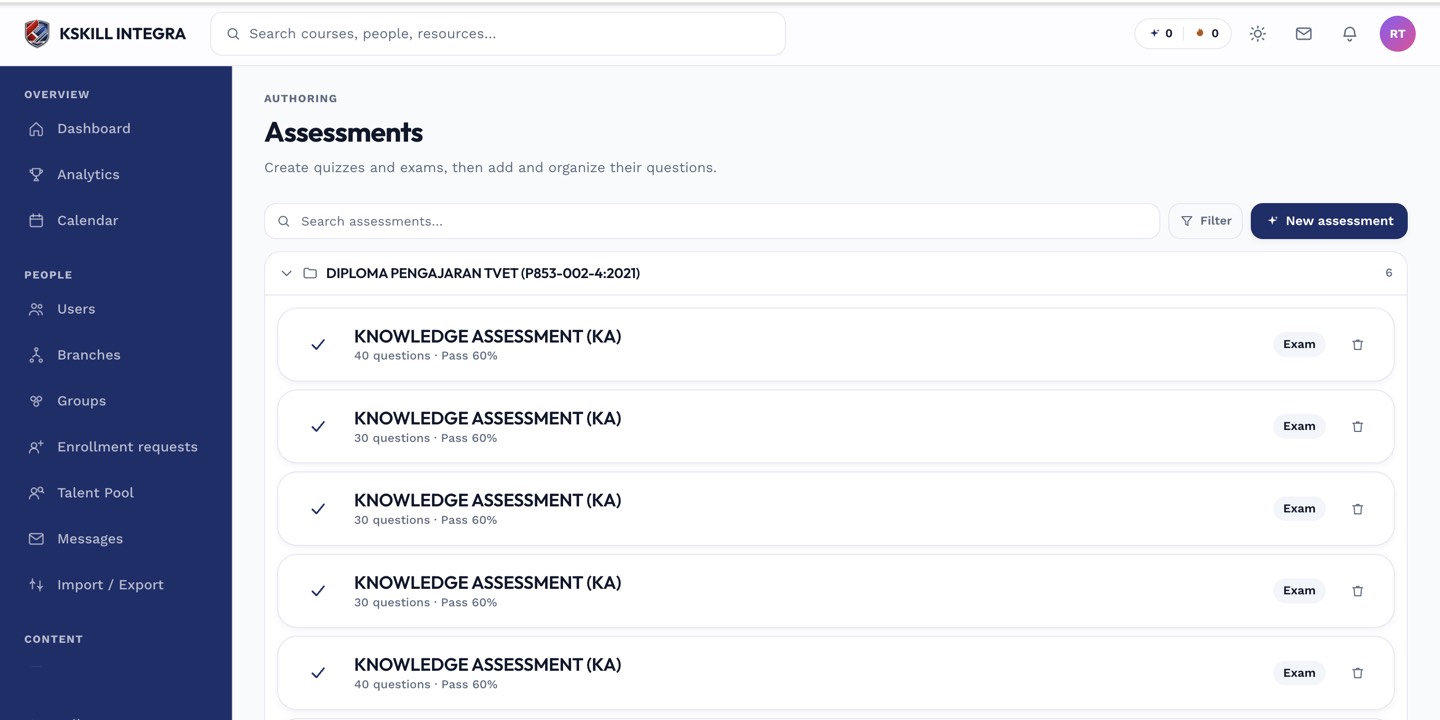 Filter the table by course or status first so your selection only covers what you intend to grade.
Notes
Mass actions cannot be undone in bulk — if you need to correct one learner's grade afterward, open that row individually.
What next?
#grading#mass-actions#bulk#assignments