Set course prerequisites
Prerequisites let you enforce a learning order — a learner cannot start course B until they have completed course A. This article covers how to attach one.
Before you start
You need the Admin or Instructor role. Both courses must already exist.
Step 1 — Open the course options drawer
Open the target course (the one you want to gate) and open its options drawer. Scroll to the Prerequisites section — that is where the gating rules live.
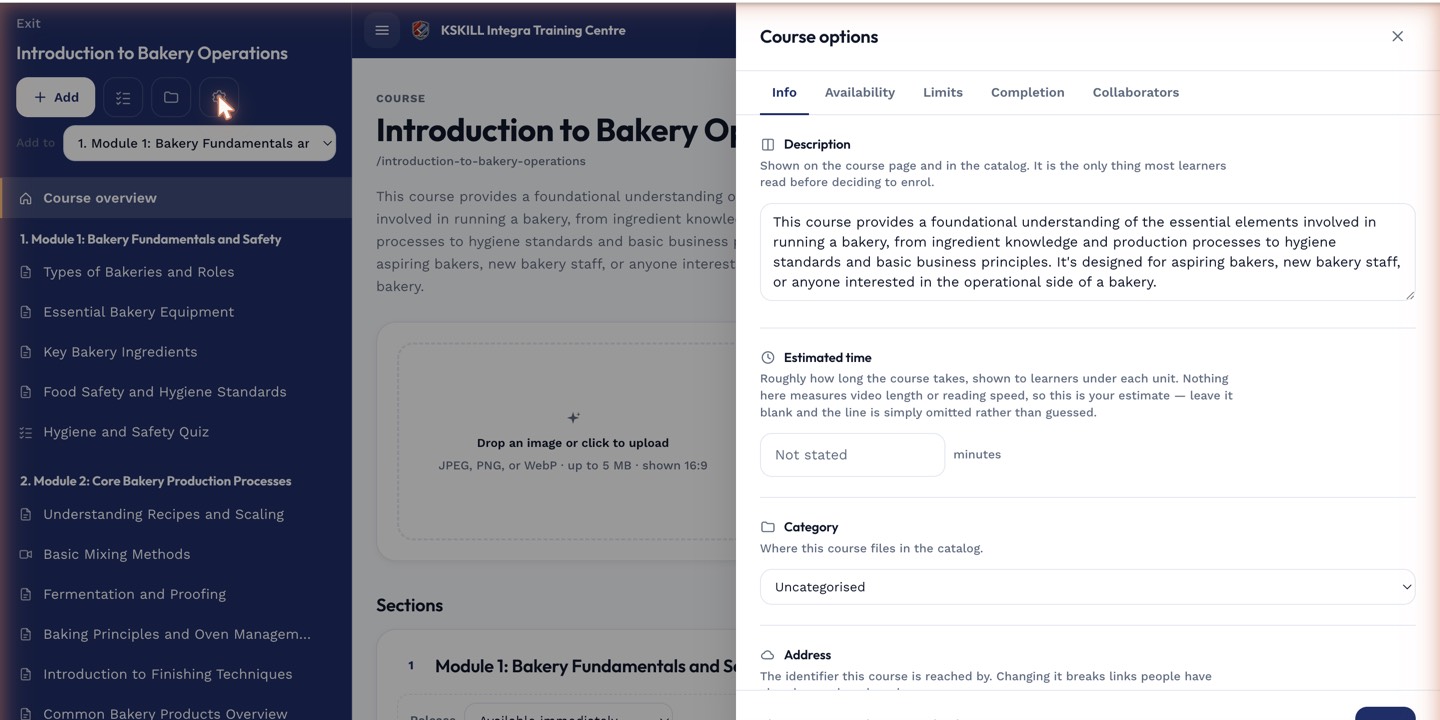
The options drawer is where every per-course rule lives — visibility, price, completion criteria, expiration.
Step 2 — Attach one or more prerequisites
Click Add prerequisite and pick a course from the list. Repeat if you want multiple. All prerequisites must be complete before the target unlocks — there is no OR mode. Save the change and the rule is live for every future enrolment.
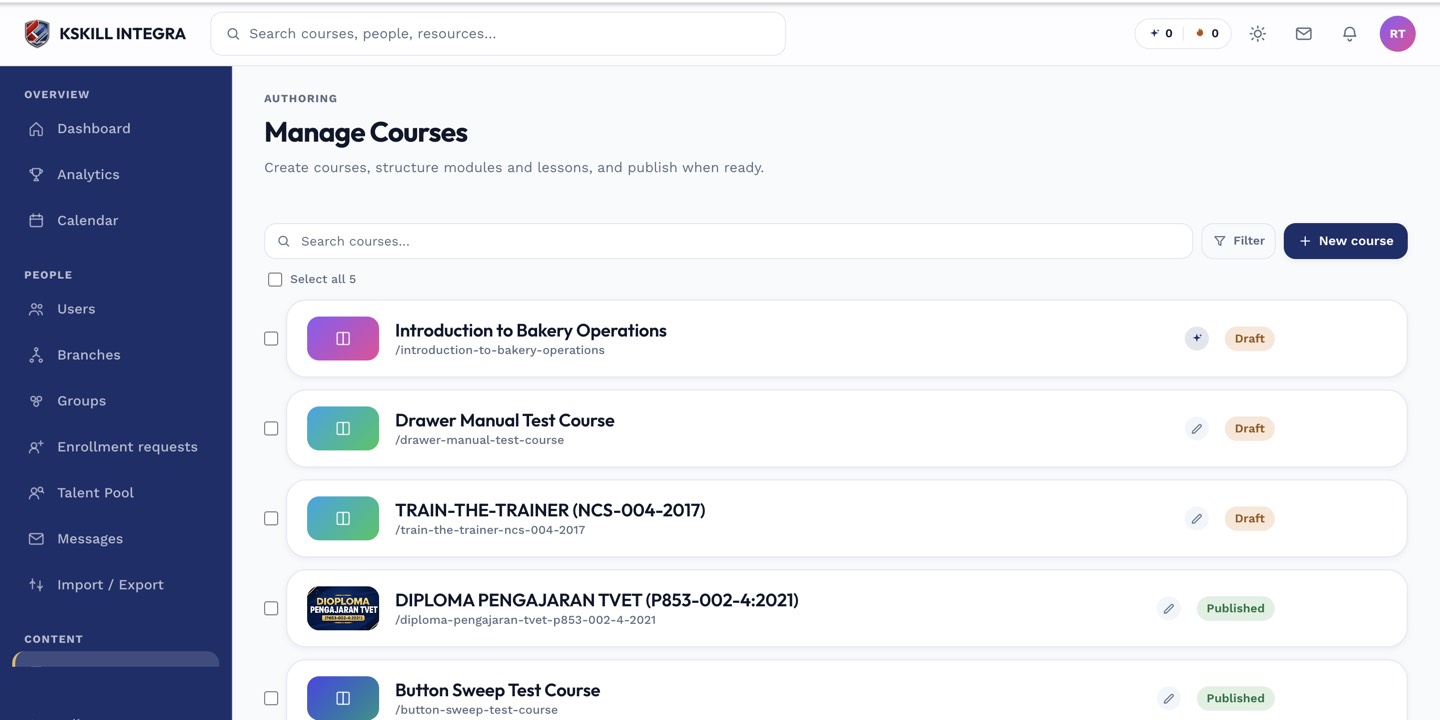
The Manage Courses screen is the launch pad for anything course-related.
Step 3 — What learners see
A learner enrolled in a locked course sees the course card in My Learning with a padlock and a hover tooltip explaining which prerequisites remain. Once they complete the last prerequisite, the padlock disappears and the course opens for them.

My Learning is the learner's default landing page — every enrolled course is one click away.
Notes
- Prerequisites are enforced at start-time, not at enrol-time. You can still enrol a learner in a locked course; they simply cannot start.
- For long chains, consider a Learning Path instead — same idea, better UX.