Unenrol all users from a course
Sometimes a course reaches end of life or a department pivots. This article covers unenrolling one user, a group, or everyone at once.
Before you start
You need the Admin role. Unenrolment preserves completion history — it only revokes future access.
Step 1 — Unenrol one user
Open People → Users, click the user, and switch to their Courses tab. Hover the course row and click the overflow menu. Pick Unenrol. The user loses access immediately but their historical progress and any earned certificate stay in place.
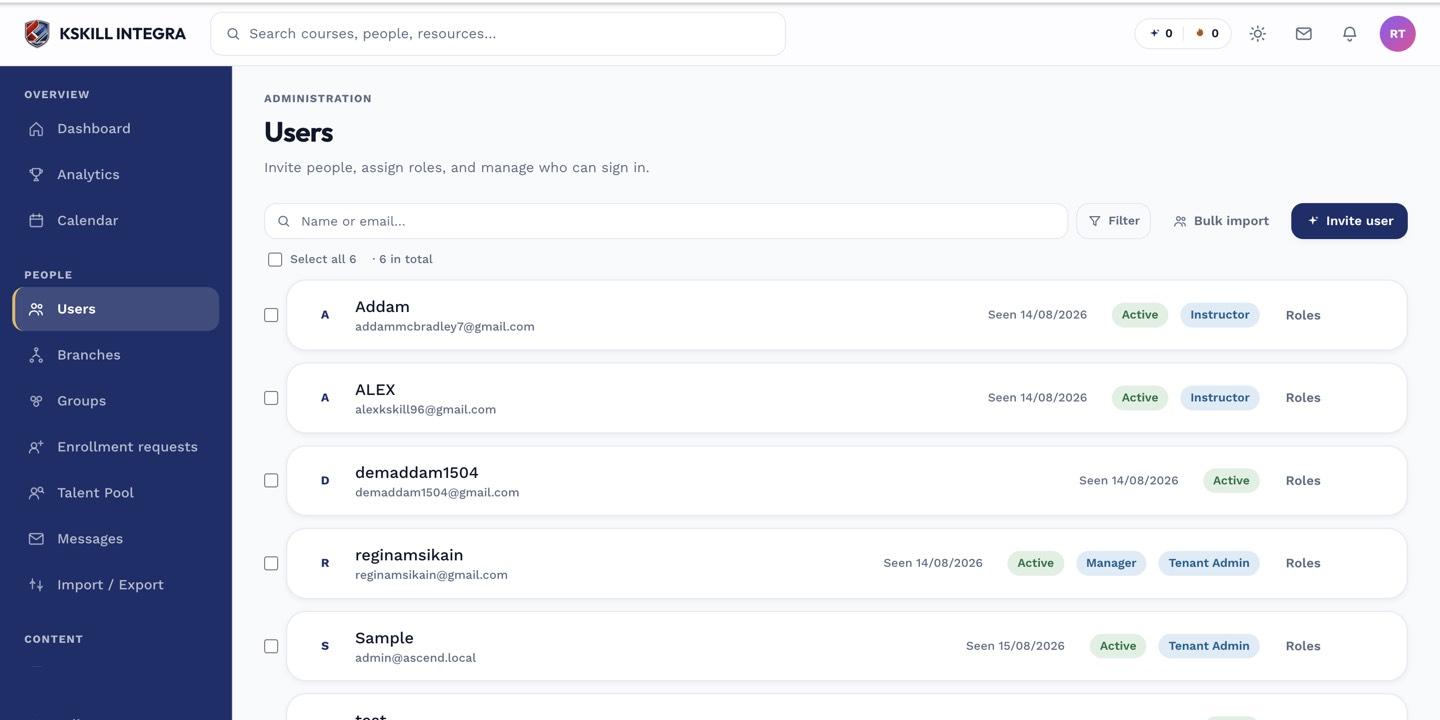
The Users list is the entry point for every person-related admin task.
Step 2 — Unenrol a whole group
If a course is attached to a Group with auto-enrol on, detach the course from the Group instead of unenrolling one by one. Every member loses access at once. Their completion records stay in the audit log for compliance reporting.
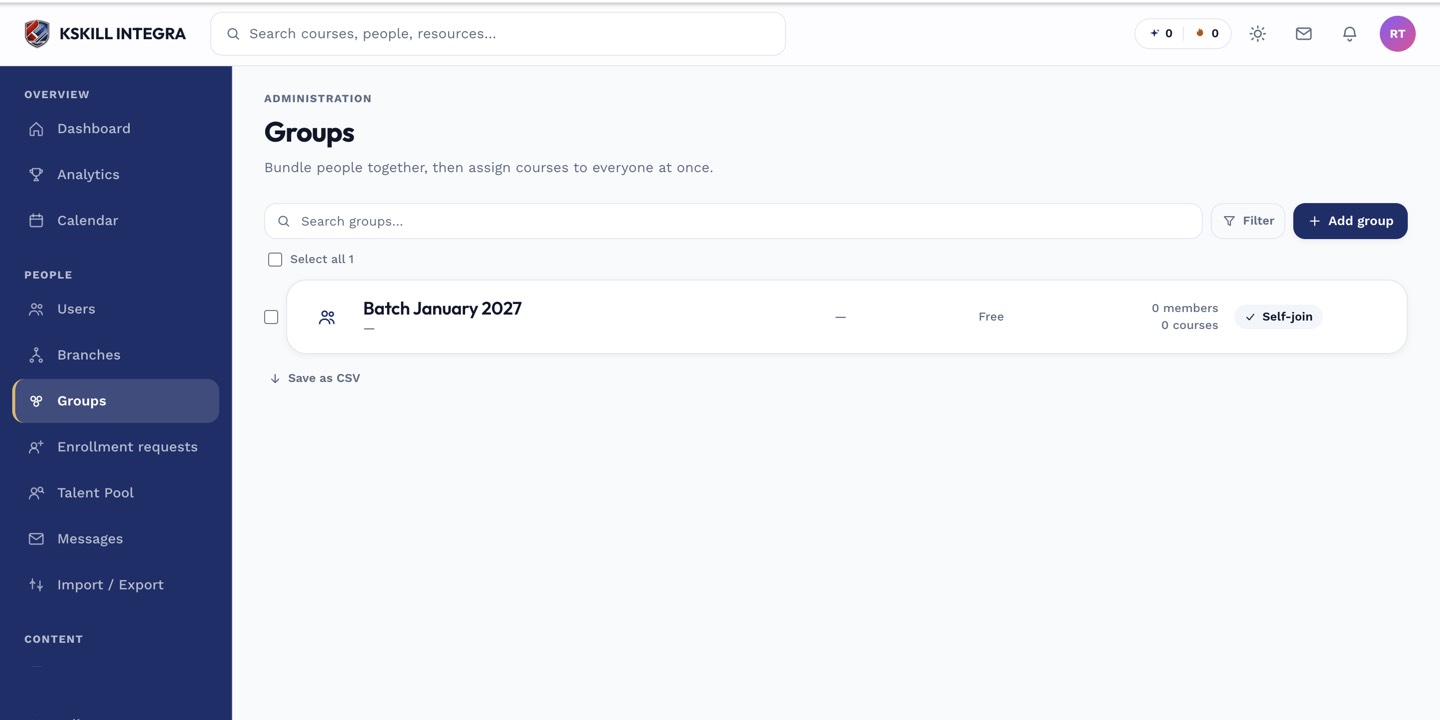
Every group management task starts from this list.
Step 3 — Mass-unenrol everyone
Open the course editor and switch to the Users tab. Select all with the header checkbox and pick Unenrol selected. Confirm and the course roster is empty. Use this before retiring a course you are about to delete.
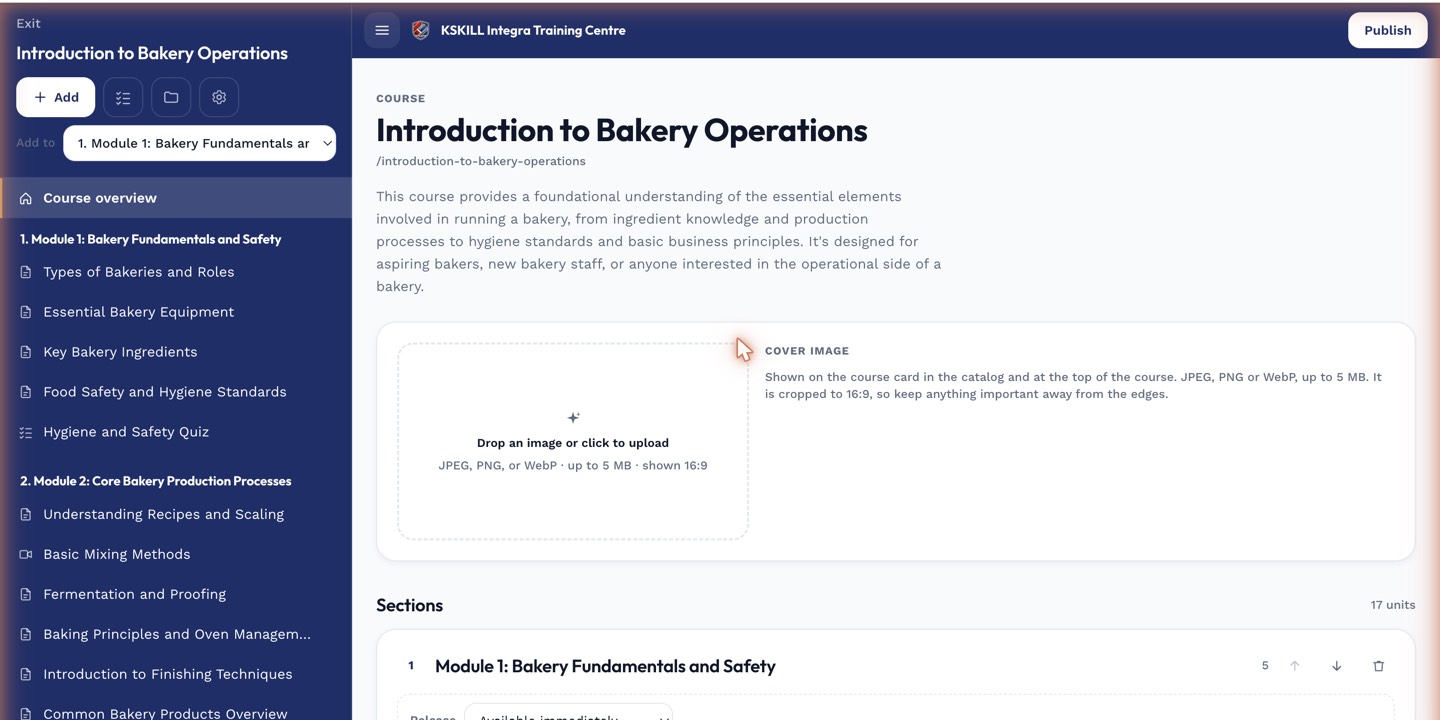
The editor is where sections and units live — everything you configure per-course starts here.
Notes
- Unenrolment does not delete data — it only revokes access. Historical reports still count completions.
- If the course is set to Auto-enrol via a Group, unenrolled users re-enrol the next time membership syncs. Detach the Group first.